
Rules: replacement, upsell, cross-sell
Sales rules tell the bot what to propose during a call: what replaces an unavailable product, when to offer a larger pack, and which complementary product to add. You set them per product in Configure on the product card in Products.
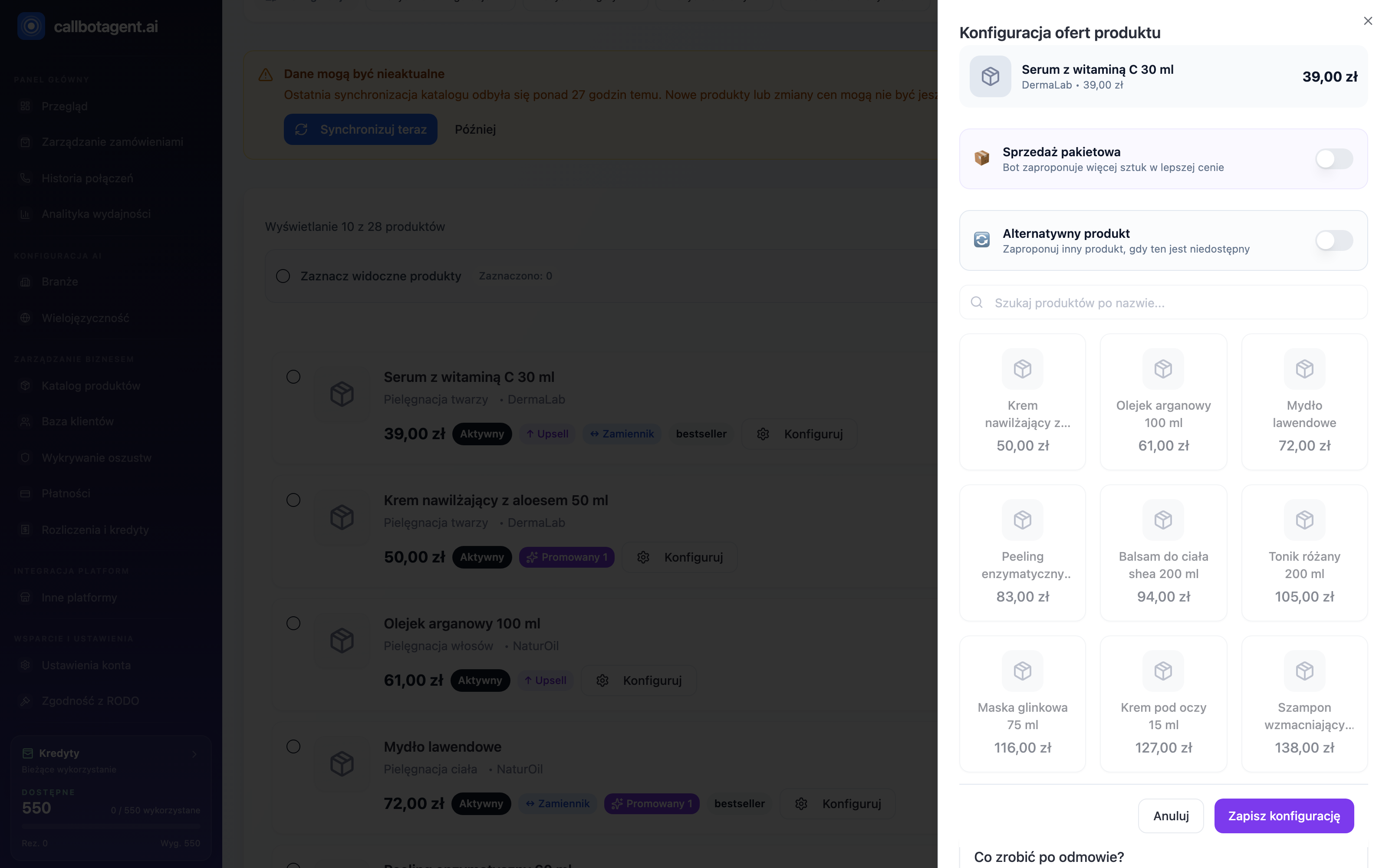 "Product offer configuration" panel with Bundle sales (upsell) and Alternative product (replacement) toggles, search, and grid of complementary products (cross-sell). Sample data (demo).
The panel opens on the right and groups all three rule types for the selected product:
- Bundle sales (upsell) — bot proposes a larger quantity at a better price.
- Alternative product (replacement) — different product when original is unavailable.
- Complementary products (cross-sell) — pick from catalog grid below using name search.
At the bottom you set after decline behavior; confirm with Save configuration.
Three rule types
| Type | Purpose |
|---|---|
| Replacement | Substitute when original is unavailable |
| Upsell | Larger quantity / bundle of same product with discount |
| Cross-sell | Related product offered additionally |
Replacement
For a product you pick one substitute from the catalog and add:
- Replacement reason — why you propose the substitute (e.g. similar benefits).
- Sales argument — how to persuade the customer.
- After decline — whether the bot continues the order without that line (continue) or cancels it (cancel).
Replacement only works when the substitute is in the synced catalog and remains available. Pick an item that truly matches the original — that raises acceptance.
Upsell and cross-sell
For upsell you set quantity (bundle) and discount percent within allowed ranges:
- Bundle quantity: 1 to 10 units.
- Discount: 0 to 50 percent.
- Proposals per call limit is set in catalog settings.
Cross-sell points to another product as an add-on (e.g. accessory). Same quantity and discount ranges apply.
Values outside allowed range will not save — the panel validates before save. You can also exclude from upsell by tag or store setting; then the bot will not propose despite a rule.
How to configure a rule
Open product
On Products click Configure on the product card.
Choose mode
Decide whether the product uses upsell or replacement path.
Fill details
Set quantity and discount or pick replacement with reason and sales argument.
Save
Save — the rule applies to subsequent calls.
Measuring effectiveness
See aggregate effects: upsell revenue and most accepted products. Whether the customer accepted a specific proposal in a given call is in the upsell and replacement sections of the call report.