
Plans, subscriptions, invoices
Your plan (subscription) determines unlocked features and monthly credit pool size. This page explains plan types, changing plans, and where to find invoices.
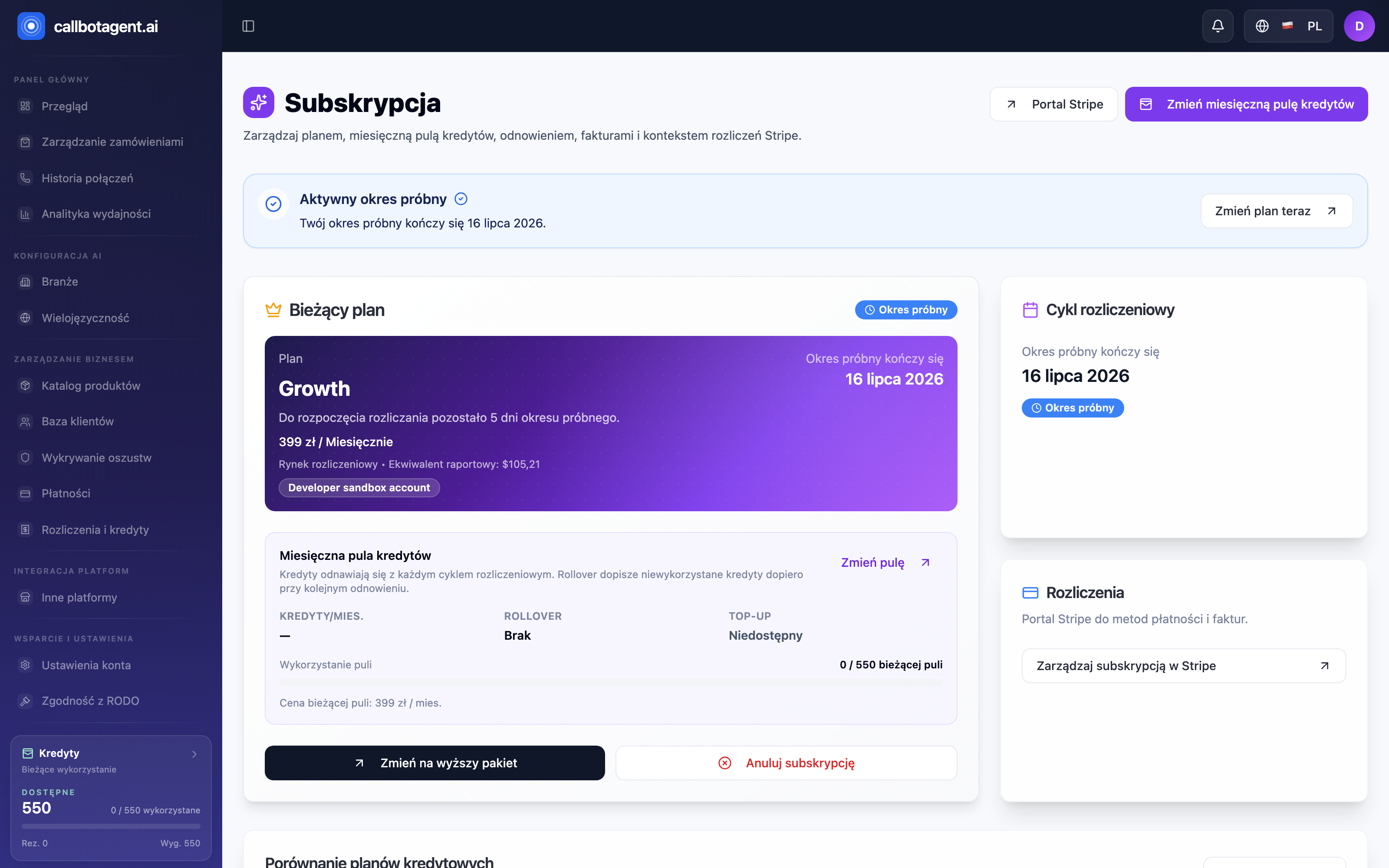 Subscription — current plan and credit pool. Sample data (demo).
 "Invoices" tab — documents for periods and top-ups. (illustrative screenshot — in progress)
Plan types
Plans differ in features and monthly credit pool. Higher plans unlock more
capabilities and larger call volume. Current plan and scope appear at
Panel → Subscription. At the bottom, Credit plan comparison lines up available
packages side by side.
Some features are plan-gated. If a tab or option is unavailable, the panel shows which plan unlocks it. That is expected, not a bug.
Current plan and credit pool
The Current plan card shows package name (e.g. Growth), price (e.g. $399 / month), and Trial period badge when applicable. The Billing cycle card shows next renewal or trial end date.
Monthly credit pool section describes call capacity in the current cycle:
| Element | Meaning |
|---|---|
| Credits/month | pool size renewed each billing cycle |
| Rollover | unused credits added on next renewal only |
| Top-up | add credits beyond pool (availability depends on plan) |
| Pool usage | credits used vs current pool |
Change pool adjusts monthly pool size; Change monthly credit pool at the top leads to the same action.
Changing plan (upgrade and downgrade)
Start plan change on the subscription page with Upgrade to higher package (and during trial Change plan now in the top banner). Available actions depend on account state:
| Direction | When it applies | Billing |
|---|---|---|
| Upgrade | immediately | prorated for remainder of period |
| Downgrade | when enabled for account | lower pool from next renewal |
After confirmation the subscription view refreshes with updated state and renewal date.
Trial period
If your account is on trial, the panel shows trial end date. After trial, the first paid period starts per selected plan if subscription stays active.
Invoices
Recent invoices are at Panel → Billing. On the subscription page the Billing
card links to the payment portal for payment methods and invoices. Open each
invoice in hosted view with line items; download PDF when available.
- Invoice details (tax ID/VAT): add company name and VAT number in the payment portal. Future invoices include them automatically.
- Past invoices: details on already issued invoices cannot be changed retroactively — update before next billing.
Complete invoice details before the next billing run. Previously issued invoices cannot be corrected backward.
Cancelling subscription
Start cancellation with Cancel subscription on the subscription page. After confirmed cancellation paid access remains until end of current billing period. After that paid calling stops until subscription resumes or a new paid period starts. Resumption depends on account state.