
Consents, contact rights, customer DNC
Before every call the system checks one thing automatically: whether the customer's number is on the Do Not Call (DNC) list. Customer consents are documented in the GDPR module and shown in the Marketing consent column — the system does not block calls based on them. Whether you have a lawful basis to call a customer is your decision as the data controller. This page explains where you see that and what follows from it.
Marketing consent in the customer database
In Customer database each customer has a Marketing consent column with Yes or No — whether they agreed to marketing contact, pulled from the store together with the rest of their data. You can filter the list by it (with consent / without consent).
| Value | Meaning |
|---|---|
| Yes | The store reported that the customer agreed to marketing contact |
| No | The store recorded no such consent |
The system does not check this column before a call. Post-order calls are scheduled by the order qualification rules, calling hours and the Do Not Call list. If a customer without consent should not be called, add their number to the DNC list.
Consent registry in the GDPR module
At Panel → Privacy, Consents tab, you keep a consent registry: single
entries (email, first name, source, status) or a CSV import. The registry is
for documentation — for example when a customer or a supervisory authority
asks on what basis they were contacted. A registry entry neither enables nor
blocks calling.
Do Not Call (DNC) list
The DNC list is numbers the bot never calls, regardless of marketing consent. A number lands there e.g. on explicit customer request ("please do not call me"). The DNC entry is checked before every call attempt — while it is active, the number is not called.
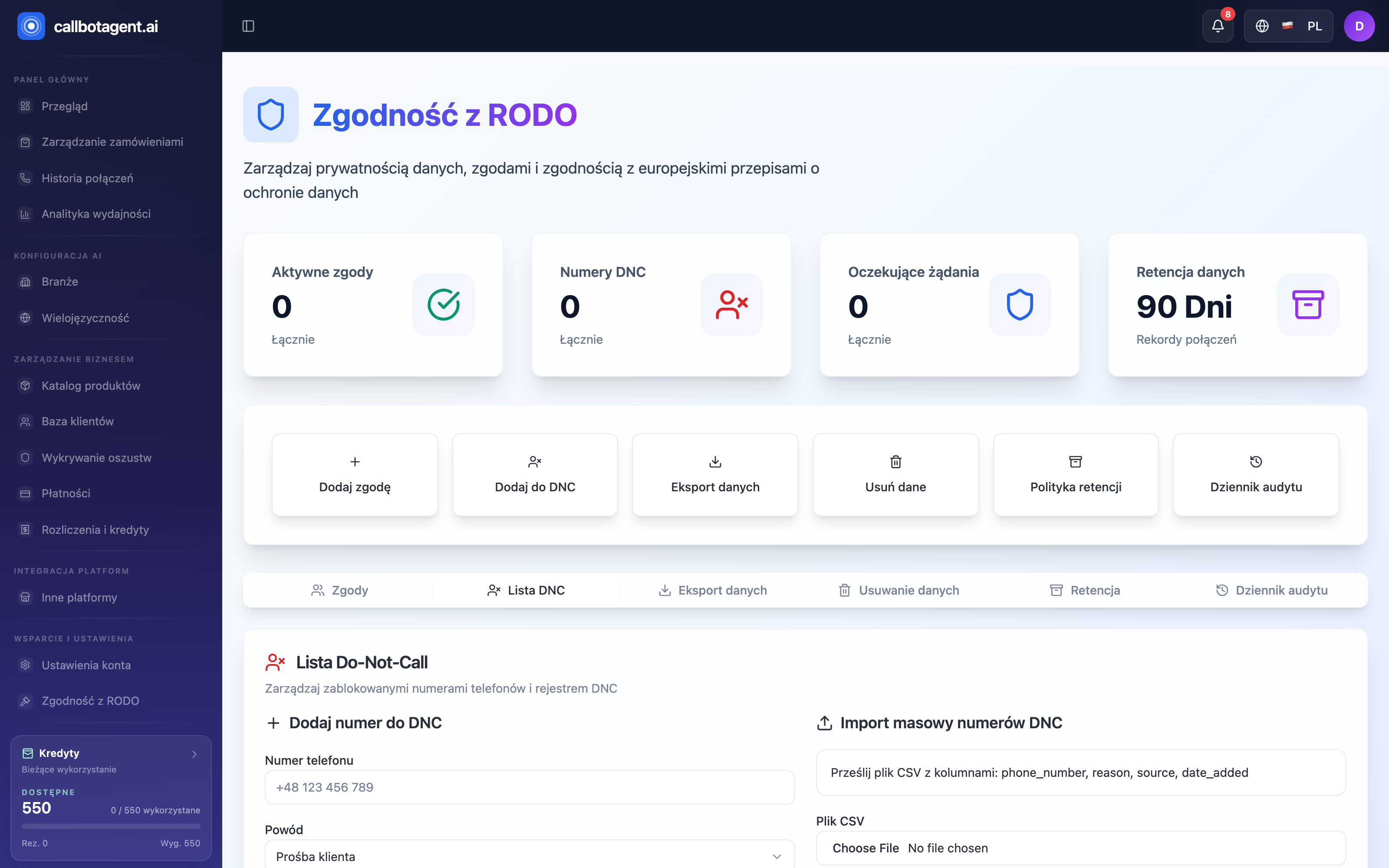 GDPR compliance — Do Not Call (DNC) list. Sample data (demo).
Manage DNC at Panel → Privacy, DNC list tab (Do-Not-Call list). Add a
number two ways:
Add number to DNC — enter phone number (e.g.
+1 555 123 4567) and choose a reason, e.g. Customer request.Bulk import DNC numbers — upload a CSV with columns
phone_number,reason,source,date_addedto add many at once.Customer asked to stop contact → add number to DNC.
Number on DNC → bot skips all scheduled attempts for that customer.
Removing from DNC restores contact possibility.
How to verify
Check the DNC list
At Panel → Privacy → DNC list check that the customer's number is not
blocked.
Verify no contact
If a customer was not called despite an order, common causes are a DNC entry, calling hours or the order qualification rules — the full list is in Why didn't the call happen?.
Review calling rules
Retry settings and DNC list are in Retries and DNC list.
Adding to DNC affects future attempts — it stops further tries. Retention and deletion rules are in Privacy and data.